
Using ExpiredDomains.net to find and filter .IN Gems
Expireddomains.net is a goldmine for dropping domains, ready for backorder. Some of them have a decade of history and real backlinks behind them. Others are short, clean, keyword rich names. Whether you are an SEO expert or domain investor, this guide will walk you through the whole thing of finding and filtering the best of .in family domains.
Before you start:
-
- Get a free ExpiredDomains.net account. MUST HAVE: As you can view complete data only when logged in.
-
- The extensions covered here:
.in,.co.in,.net.in,.org.in,.ind.in,.firm.in,.gen.in.
- The extensions covered here:
First and foremost: Pending Delete – The only list worth using
ExpiredDomains.net holds dozens of lists. Ignore all others (they are distractions) and just click on the “Pending Delete” tab at the homepage, which you will find on the bottom row of the list buttons.
Selecting .IN Domains:
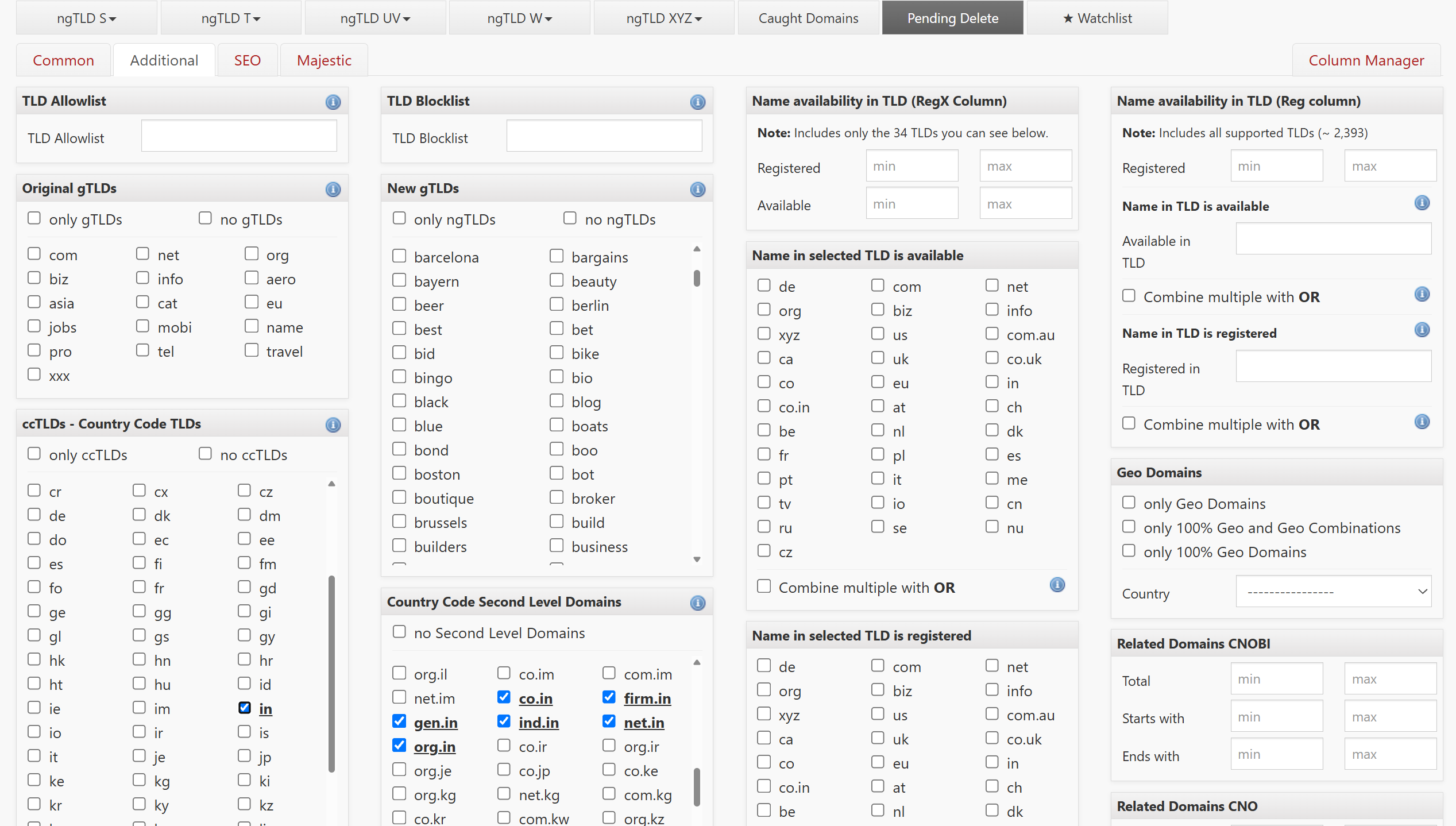
Click on “Show Filter” under the list name. Four tabs appear: Common, Additional, SEO and Majestic. Click on Additional and select every .in extension as shown in the screenshot and click “Apply Filter“.
(This is the step many people get wrong, because .in is split across two separate panels. Plenty of people conclude the tool has no co.in or other second level .in extensions)
The Hidden Setting: COLUMNS
The real gems are the vast columns of ExpiredDomains, interestingly most of which are off by default and you need to manually turn them on to view and sort by them. To do so, Click on “Show Filter” and Open Column Manager on the far right hand side, and tick/drag and save the column names on the left hand to include them in your search. Some common columns worth noting are:
| Column | What it tells you |
|---|---|
| LP | Link Pop: how many total backlinks to this domain |
| ACR | Archive Crawl Results: how many times it was actively crawled |
| CF | Majestic Citation Flow: how many links point at it |
| TF | Majestic Trust Flow: how trustworthy those links are |
| MIU | Majestic Indexed URLs: how many of the site’s pages Majestic has indexed |
| WPL | How many links it has from Wikipedia |
| MBLE | How many backlinks come from .edu sites |
| MBLG | How many backlinks come from .gov sites |
| SG | Monthly Search volume for the name as a keyword |
| CPC | What advertisers pay per click on it |
| Reg | How many other extensions the same name is registered in |
(View the column manager screenshot below)
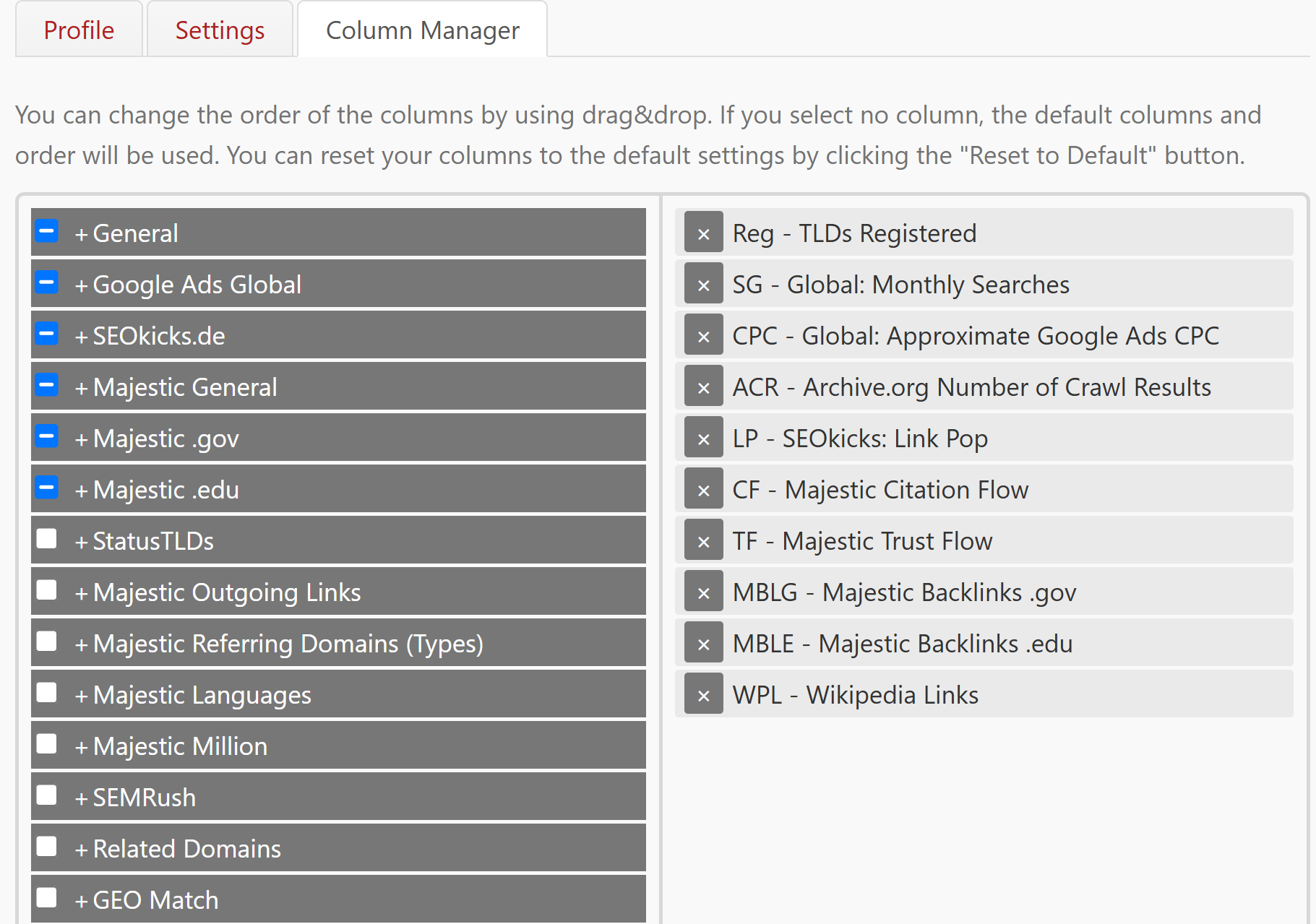
The column manager to add, remove, and drag the required columns. Keep the required ones and remove the clutter.
Section 1: Finding domains with real SEO and Backlinks history
(This section is for bloggers, content creators, and SEO experts. If you are a Domain Investor, you can skip this part and head for section 2.)
(A.) Filtering for backlinks
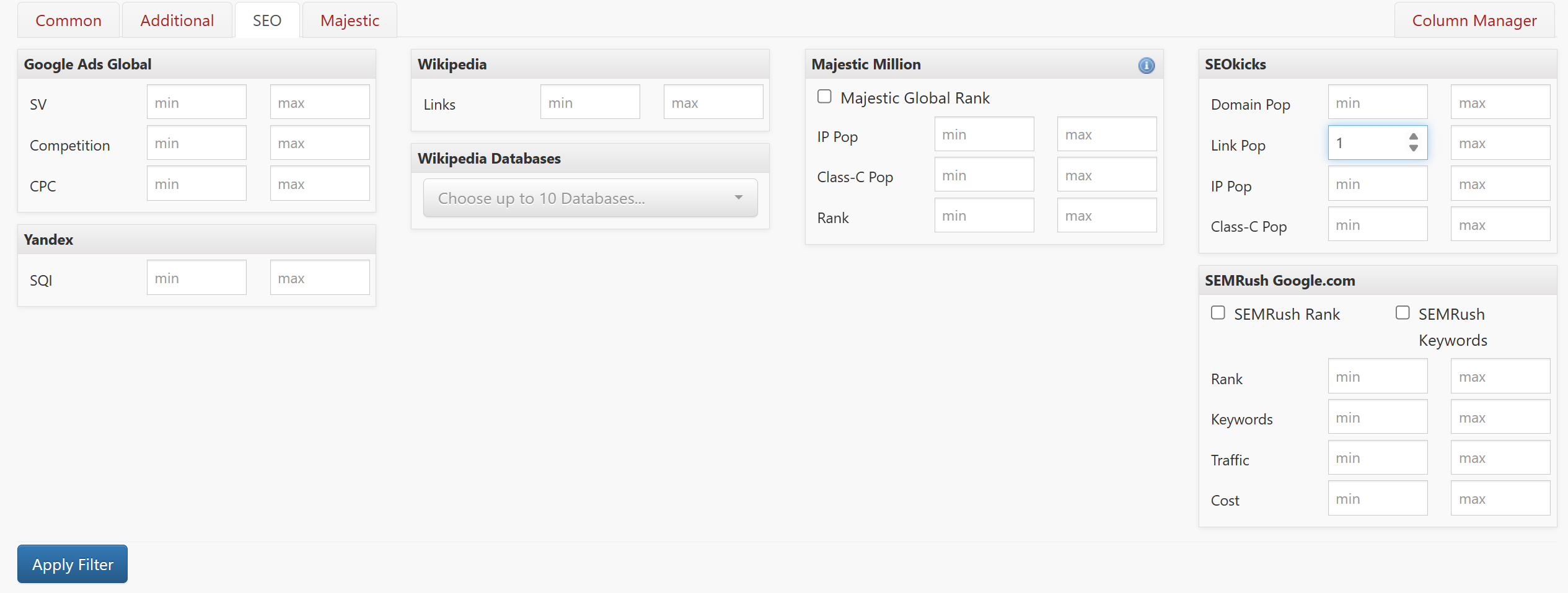
Click on Filter, on the SEO tab, find the SEOkicks panel on the right, and set a minimum of 1 on Link Pop , and apply the filter. This will remove all websites which don’t have any backlinks. Start low and tighten later.
(B.) Filtering for further backlinks trust
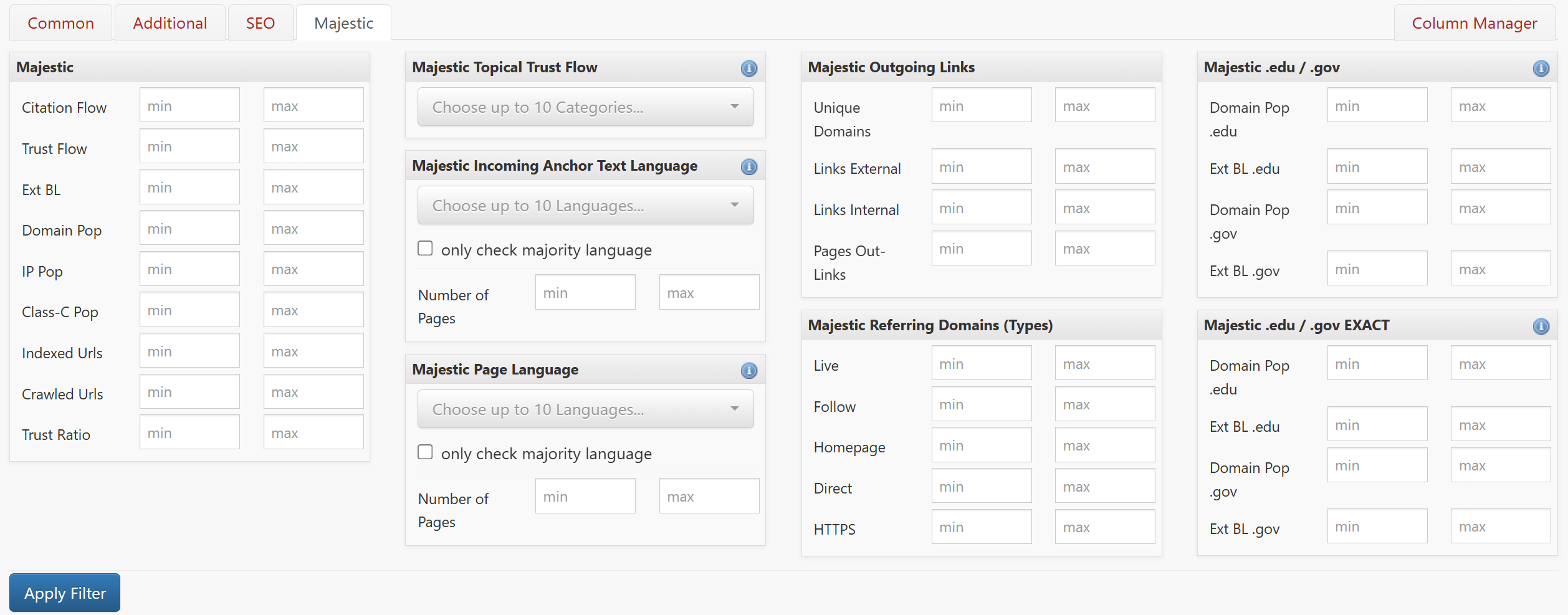
Click on the Majestic tab, start with low minimums under both Trust Flow and Citation Flow and set as per your requirement. Trust Flow measures link quality. Citation Flow measures link quantity. The relationship between the two tells you far more than either number alone. If you already know what you intend to build, set Topical Trust Flow to matching categories.
(C.) Finding GOV and EDU referred domains: A small tip
Although not for everyone, but if you are a content creator in GOV or EDU niche, this trick is for you.
Staying on the Majestic tab, look to the far right, past the flow metrics and the topical filters, to the two narrow .edu and .gov panels as shown in the above screenshot. Set either Domain Pop .gov or Domain Pop .edu to a minimum of 1, depending upon whether you work in GOV or EDU niche. Domain Pop counts distinct referring domains, so a value of 1 keeps only names that carry at least one live link from a government or academic site. (Set only one at a time, not together, since demanding both at once leaves almost nothing).
(D.) Sort by ACR
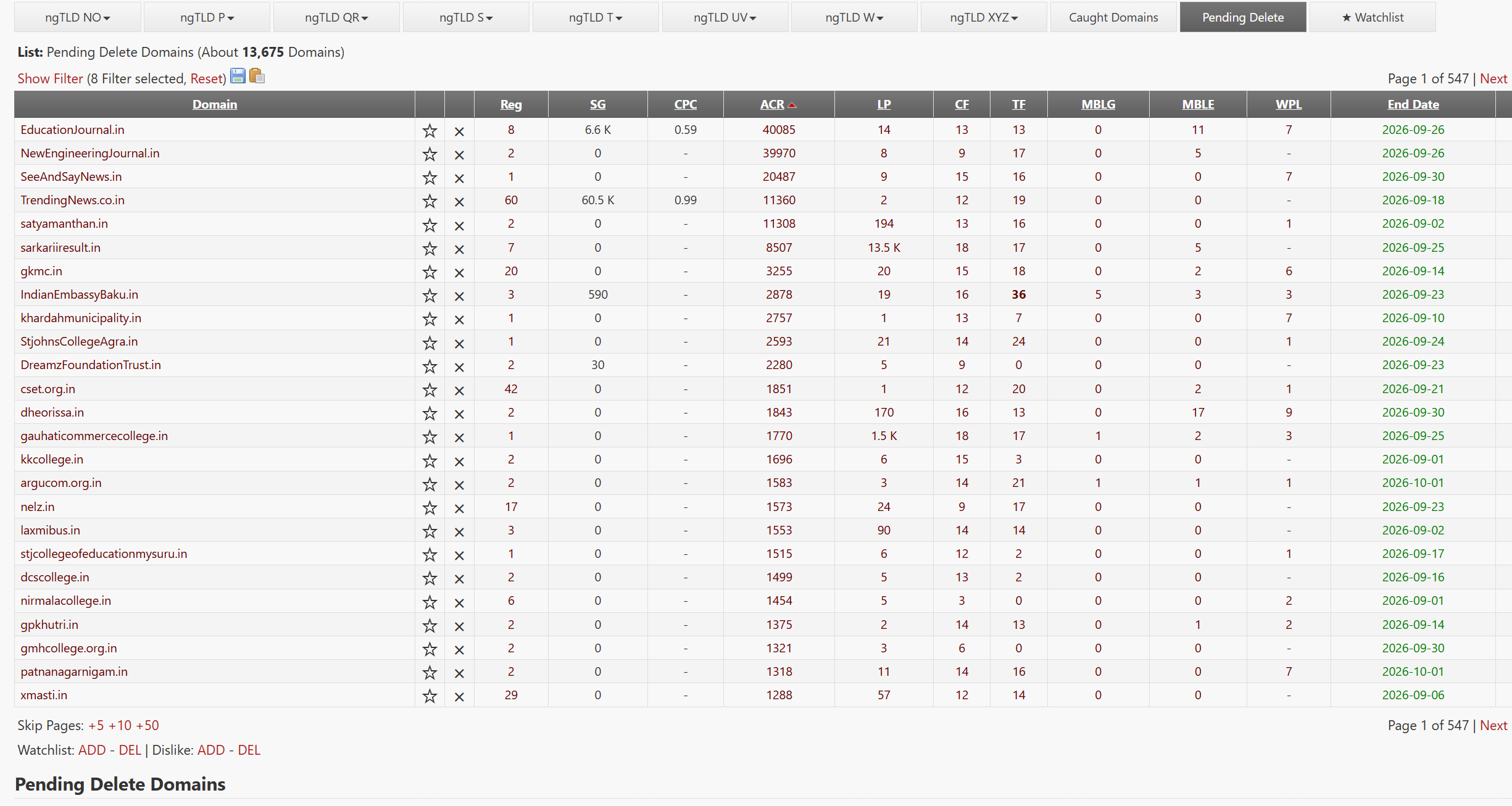
And finally, once you have set your required filters, click the ACR column heading to sort descending (higher the better).
The full meaning of ACR is the Archive.org crawl result count: how many times the Wayback Machine actually crawled the site. Unlike links, it cannot be manufactured. Sort by it and you will find domains that were unmistakably real websites for years, often colleges, universities, journals, civic bodies and long running organisations. It works precisely even if other link filters fail.
Section 2: Finding keyword rich domains worthy of investment
(This part is for Domain Investors and Keyword Flippers)
(A.) To begin, filter for clean names
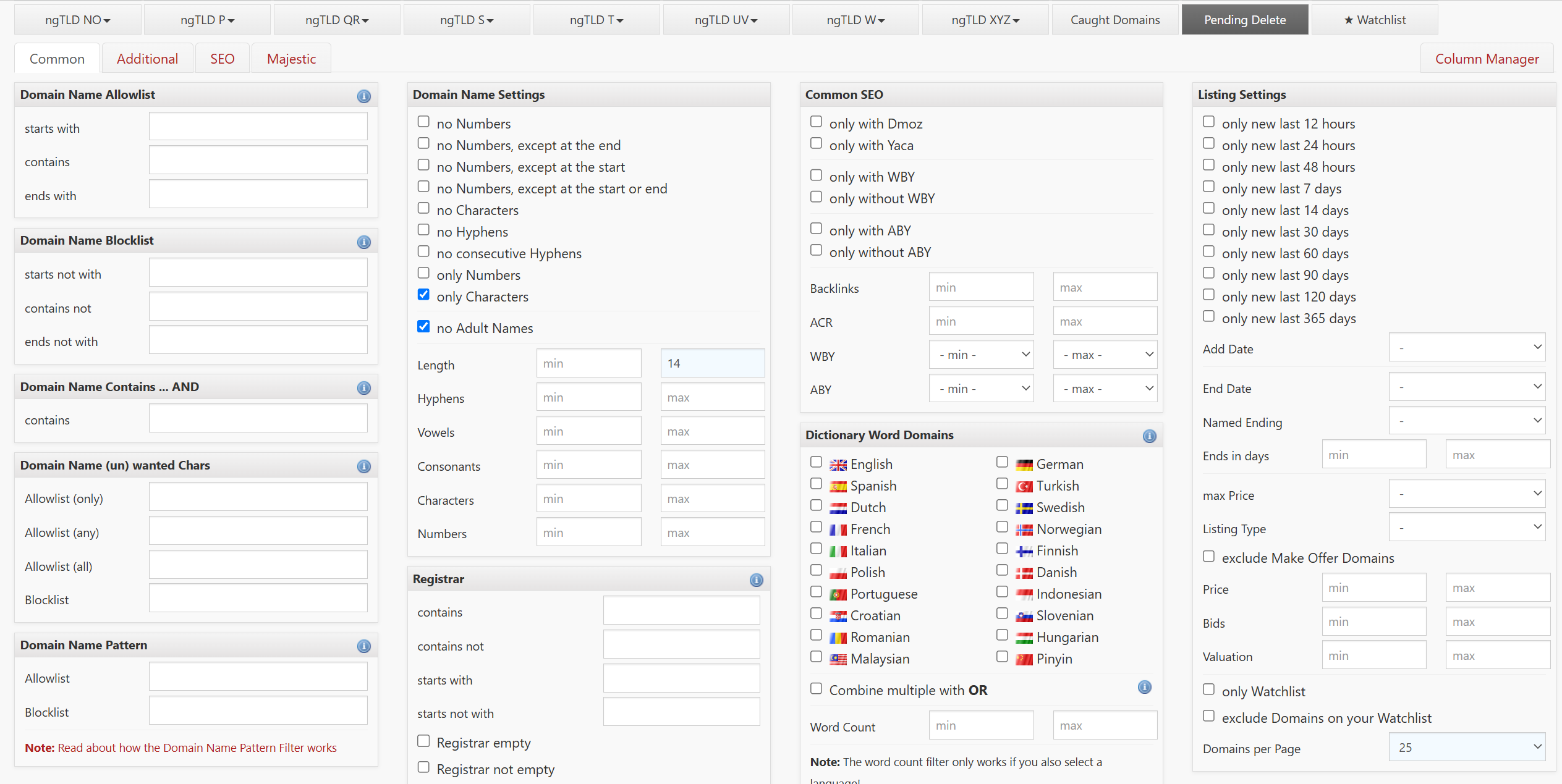
Click on “Show Filters” filters and on the Common tab, under Domain Name Settings, you can find some common settings to view better domains. Set as per your requirement. Optionally, you can also set the “REG” setting under the “Additional” tab to a reasonable minimum to view only the high demand domains.
(B.) Sorting by SG or REG
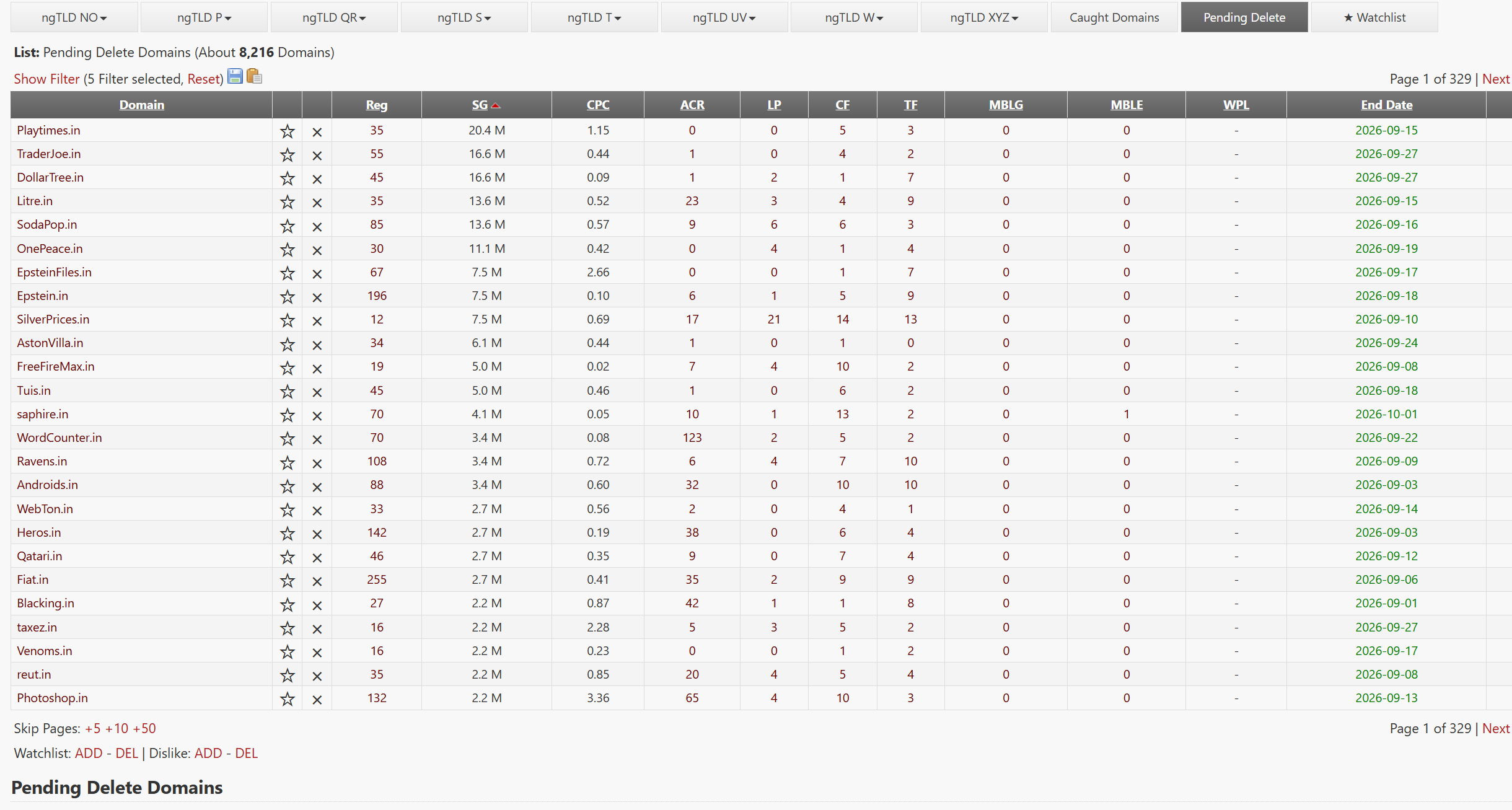
Sorting by either REG or SG ranks every name by how many other extensions it is already registered in (high demand) or how often it is searched for (highly searched) respectively, which is precisely what you want. Go further down the list to browse atleast first 200 names to reach the genuine pool of keyword domains.
(C.) The pattern filter (for invented names)
If you want to work in the custom (made up names) niche instead of dictionary words, The Domain Name Pattern field is there for you. It matches the shape of a name rather than its content, which is how you find pronounceable invented words. Paste in a set of patterns separated by spaces:
| Symbol | Matches |
|---|---|
C |
a consonant |
V |
a vowel |
L |
any letter |
N |
any digit |
^ |
switches to “starts with” mode |
Two mechanics to know: By using this filter, the name will match the pattern completely, including its length, unless you use ^. And multiple patterns combine as OR, so you can run a whole family of shapes at once. For example, CVCV gives four letter, two syllable names. CVCVCV gives six letter, three syllable ones. Those are the shapes that read as brands in most languages.
…And finally, acquire your domain by backordering them
Copy the domain(s) that you have shortlisted, and place their orders at iNBackorder.com. The process is straightforward. Just create a free account and head to the backorder page (login required) – you can also use the bulk backordering feature there to order multiple domains at once. Happy Backordering!